
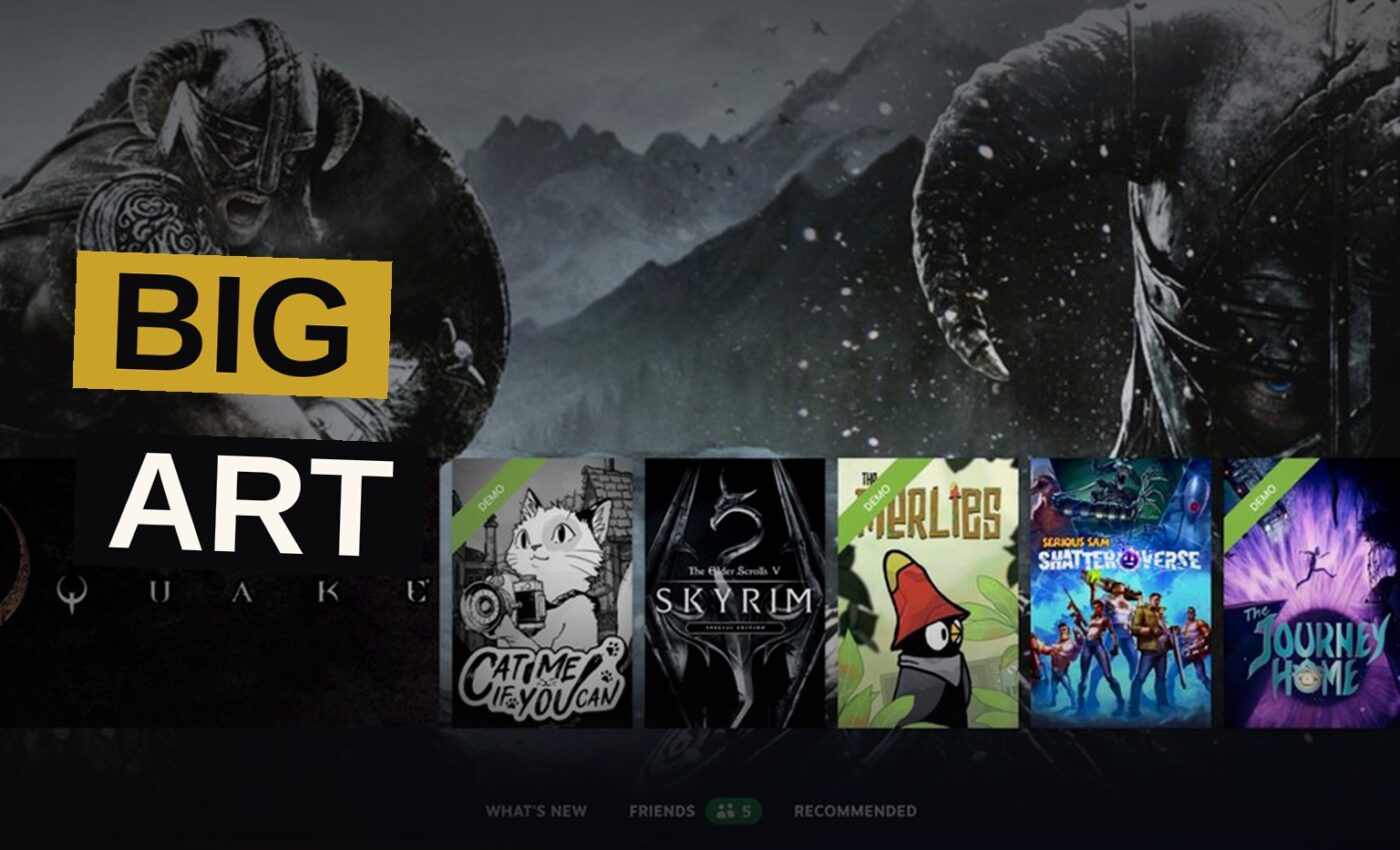
Steam’s latest beta brings a new “Big Art Mode” to Big Picture Mode and the Steam Deck, plus customizable screensavers and a host of smaller performance fixes. The update is rolling out now, and you can opt into it via the Interface menu in your Steam settings.
The headline change is the Big Art Mode, which replaces the standard carousel of recently played games with a single large splash of art from the highlighted game. The effect is cleaner and more visually striking, though not every game adapts well to it. The Merlies, for instance, doesn’t quite fit the system. Overall, though, it’s a nicer look for those who prefer a neat and tidy interface.
Big Art Mode: Cleaner and Sexier
This beta’s main addition is the Big Art Mode, which replaces the usual carousel of recently played games. Rather than showing a list of titles, the new mode displays a single large piece of art from the featured game, turning the home screen into something that looks more like a gallery wall than a dashboard.
Here’s what the comparison looks like:
| Mode | Look | Content |
|---|---|---|
| Standard interface | Carousel of recently played games | All content visible at once |
| Big Art Mode | Single large splash of game art | All content still available, scroll to find it |
The price to pay is that some of what you once could see at a glance now sits below the fold, hidden behind a scroll. Still, if a tidy initial look is your preference, the format delivers exactly that.
Screensavers Get a Slideshow
The new screensaver feature is purely cosmetic, but it’s a fun addition. You can choose from a slideshow of art from your recently played games, with or without your own screenshots included. There’s also a retro-inspired bouncing logo screensaver that mimics the old DVD player effect, where the Steam logo bounces off the screen’s edges.
The beta also supports custom screensavers. They sit inside the config\uioverrides\screensavers folder within your Steam installation directory. The bouncing logo screensaver found in the steamui\screensavers directory acts as a working example. If you wish for a personal image or animation to rotate behind your display, the beta points you toward the correct location to place it.
Performance Fixes and Bug Fixes
Valve’s beta release isn’t just a cosmetic update. The company has included several performance improvements and bug fixes throughout the build.
The Steam Client now launches more quickly, an improvement on the startup front. For Direct3D 12 titles running on Windows, the strain placed on performance by game recording has been eased, making the process less disruptive while playing.
Several major flaws have been addressed in the beta. Among them is a situation where some users may fail to auto-reconnect to Steam following server maintenance. The release also resolves a bug that caused users to be prompted to refresh their credentials more than once, which previously triggered an immediate restart. On Windows, exiting via the systray menu while the Steam window remains minimized will no longer flash the window visible briefly.
Error dialogs that signal serious problems now remain above the main window so they aren’t missed. The in-game overlay has been fixed for frame rate hitches in D3D11 and D3D12 games when taking screenshots on Windows, and Vulkan games that create multiple windows now render the overlay correctly.
Big Picture Mode Improvements
Beyond the screensaver, Big Picture Mode picks up several small convenience improvements. The Personal Calendar now shows up on the Recommended tab of the home screen, so users can spot their next appointments more easily. The idle timer settings have been sorted differently depending on whether the device is running on battery power or plugged into AC.
There’s also a new warning text in the power menu confirmation dialogs, explicitly telling you that proceeding will shut down an active game. The default artwork has been updated when an app doesn’t have library or hero artwork.
This part of the report deals with how the system handles processing power during actual play and while setting things up, with gains in both. The tool used to look through configuration choices now displays which setups work with a game that calls on the Steam Input API. A feature that displayed “This game doesn’t support controllers” for titles lacking controller data before release has been corrected.
The desktop configuration was not being used by controllers on the desktop UI login window, though that issue has since been fixed. The settings for tweaking how an emulated joystick’s adaptive centering behaves on a trackpad have also returned.
Linux Support Gets Better
This beta brings some welcome changes for Linux users, including faster download speeds on high latency connections, which should benefit those working with slower internet links.
The “Select compatibility tool” dropdown is now always visible, and the recommended compatibility tool or Steam Runtime for native games shows at the top of the list as the “Default” option. Compatibility tool aliases, such as “Proton Stable,” can now be selected from this dropdown.
When users install games on SteamOS hardware that have not been verified for that hardware, the SteamOS compatibility dialogs will appear within the desktopUI. On Desktop Linux, a separate SteamOS unsupported dialog will surface during installation if the game is known to fail with Proton. For the hardware survey, the distro information collection process now looks first to /etc/os-release for its data.
Remote Play and SteamRT3 Fixes
Remote Play gets a small fix in this beta. The “Add a Non-Steam Game” feature now shows a valid list of applications, and the “Run Steam when my computer starts” toggle has been fixed.
The beta is, of course, a beta. There’s always a chance things could go wrong, but Valve has historically been careful with these releases. The company is generally very good with this stuff, so it’s not too much of a dice roll.
How to Try the Beta
To see the new Big Art Mode, screensavers, and the rest, you have to join the Steam client beta. Head to the Interface section inside your Steam settings, where you will find the switch.
A complete set of notes covers the whole update, ranging from the new homescreen through to the Linux improvements. Each feature gets its own explanation, with the directories for custom screensavers and the paths where the files sit laid out clearly.
The beta version offers a solid choice for most people. It delivers improved performance and stability through its core fixes, while cosmetic adjustments can be switched off if they aren’t appreciated. A screensaver feature adds a pleasant touch, and the option to personalize it using your own images makes for a welcome extra.
Source: pcgamer.com
Get the Notebook.
The day's best stories and every fresh verdict, in plain English, in your inbox by seven. One email a day, no more.